AI Outpainting — Extend Any Image Online
AI outpainting fills in the space beyond your image's edges — automatically, realistically, and without prompts. Run it in your browser in seconds.
Designed for creators comparing manual editing, desktop tools, and local AI setups.
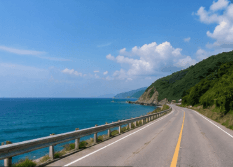
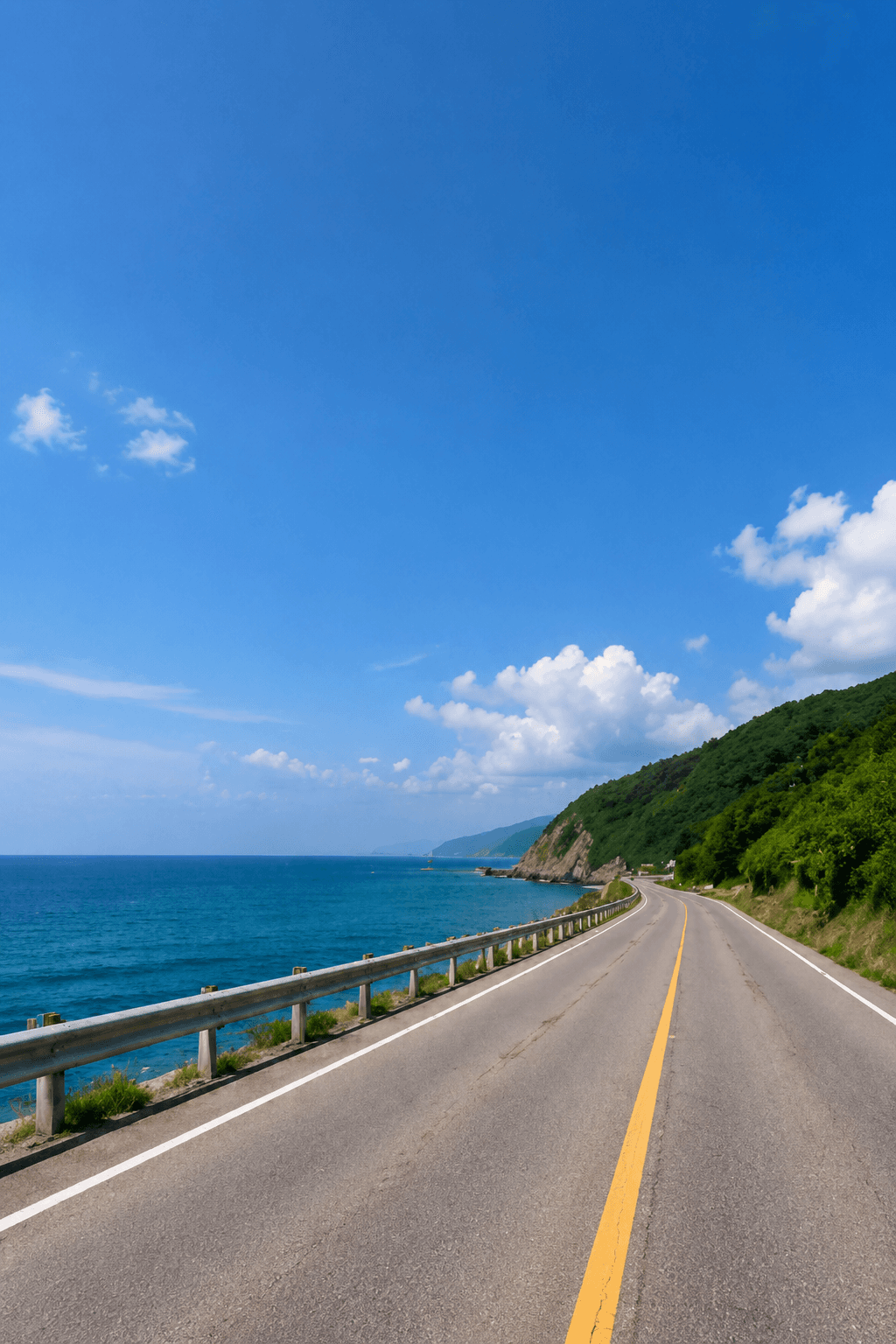
Outpainting Before and After
The model analyzes the source photo and generates new pixels around it so the final frame feels complete.
ImageFit AI brings AI outpainting to a simple web workflow. Upload a still image, choose a supported target ratio, and let the model infer the new surrounding content from the original scene.
What Is Outpainting?
Outpainting is the process of extending an image beyond its original borders using AI. The model analyzes the existing content — colors, textures, composition — and generates new pixels that blend seamlessly with the original.
The result looks like the image was always that size. ImageFit AI brings this capability to a simple web tool: no Photoshop subscription, no local GPU, no waiting for a model to download.
Local tools like Stable Diffusion can produce excellent results but require a capable GPU and technical setup. Browser-based outpainting tools eliminate that barrier. ImageFit AI runs inference in the cloud, so any device with a browser can access the workflow in seconds.
How It Works
The workflow is built for creators who want the result without a local model setup.
Upload
Add a JPG, PNG, or WEBP still image up to 10MB.
Choose a target ratio
Select a currently supported ratio: 3:4, 4:5, 2:3, or 9:16.
Download
Review the AI-expanded result and save the generated image.
Supported Outpainting Targets
ImageFit AI currently exposes these target ratios in the live browser workspace.
RedNote / Xiaohongshu
Cover format currently available in the workspace.
Instagram Post
Vertical feed format currently available in the workspace.
Pinterest Pin
Pin format currently available with multiple candidates by default.
TikTok / Reels / Shorts
Vertical format currently available with multiple candidates by default.
ImageFit AI vs Common Alternatives
Different workflows suit different teams. ImageFit AI focuses on a fast, browser-based path for still-image outpainting.
| Workflow | ImageFit AI | Desktop software | Local model | Manual editing |
|---|---|---|---|---|
| Ease of use | Guided upload flow | Layer and canvas tools | Setup and prompt workflow | Requires manual composition |
| Speed | Fast browser workflow | Depends on project setup | Depends on hardware | Usually slower for batches |
| Requires local GPU | No | No | Often yes | No |
| Free trial path | Free credits included | Depends on plan | Depends on setup | Depends on tool |
| Browser-based | Yes | Usually desktop | Usually local | Sometimes |
Use Cases
Use online outpainting when the original frame is too tight for the layout you need.
Wide social media banner
Extend a photo so it has more room for a wide header or campaign crop.
Portrait with breathing room
Add space around a person while keeping the original subject intact.
E-commerce product shot
Grow product surroundings for marketplace and social listing layouts.
Cinematic version
Create a taller or more spacious version of a square or landscape source.
Feature Highlights
Cloud inference
Use AI outpainting without installing a local model or configuring a GPU.
Prompt-free workflow
The AI infers context from the original image in the standard flow.
Supported social ratios
Generate currently supported 3:4, 4:5, 2:3, and 9:16 outputs.
Multiple candidates where helpful
Larger expansions like 2:3 and 9:16 generate multiple candidates by default.
Download in browser
Review and save the generated still image from the workspace.
FAQ
Answers to common questions before you start expanding images.
What is AI outpainting?
AI outpainting is a technique where an AI model extends an image beyond its original edges, generating new content that matches the existing style, colors, and composition. It is the opposite of cropping — it adds to the image rather than removing from it. ImageFit AI uses outpainting to help creators reformat photos for supported platform ratios without losing their subject.
Can I try ImageFit AI's outpainting tool for free?
Yes. ImageFit AI offers free credits for eligible new users, with no credit card required. For high-volume use, additional credits are available as one-time packs or via a monthly subscription.
Do I need to write a prompt to use the outpainting tool?
No. ImageFit AI's outpainting is fully automatic. You upload an image, choose a supported expansion preset or target ratio, and the AI does the rest. You do not need to describe what you want the AI to generate — it infers context from your original image.
How does AI outpainting differ from cropping or resizing?
Cropping removes part of your image; resizing distorts or stretches it. Outpainting does neither — it keeps your original image intact and adds new AI-generated content around it. The result is a larger image where the new area blends naturally with the original, so your subject is preserved and the composition looks intentional.
Can I outpaint a video?
ImageFit AI currently processes still images. For video outpainting, you would need to extract individual frames, outpaint each frame, and reassemble — which is a multi-step workflow not currently automated in the tool. Still-image outpainting covers most social media and content creation use cases.
What is the difference between inpainting and outpainting?
Inpainting fills in a masked area within an existing image, for example removing an unwanted object. Outpainting extends the image beyond its current borders. ImageFit AI focuses on outpainting — adding canvas space — which is what you need when reformatting an image for a different aspect ratio.
Related Tools
Continue with the Batch 1 pages that are live now.
Start with one image.
Upload a supported image, choose a target ratio, and let ImageFit AI expand the canvas.